
Azure Marketplace
Private Offer Onboarding & Pricing Guide
Simple steps to sell and onboard each customer through Azure Marketplace using a private offer.
How it works
- 1Negotiate a price with the customer
- 2Create a private offer in Partner Center
- 3Customer accepts and pays in Azure
- 4Activate on the Legale.io landing page
- 5Microsoft bills the customer and pays you
Prerequisites
- The Legale.io SaaS offer is live on Microsoft Marketplace.
- A public Enterprise plan is published. Private offers require a publicly transactable plan.
- You have the customer’s Billing account ID and negotiated price.
What is already live — do not recreate
Your Marketplace offer is published. Use these existing values for every private offer.
| Item | Value |
|---|---|
| Offer | Legale.io (Contract Lifecycle Management) |
| Publisher ID | despapeliza-io |
| Offer ID | legale-io-clm |
| Plan | Enterprise Plan — Public |
| Auto activation | Off |
| Landing page | legale-mp-portal.azurewebsites.net |
| Admin portal | legale-mp-admin.azurewebsites.net |
| Webhook | https://legale-mp-portal.azurewebsites.net/api/AzureWebhook |
| Azure create URL | portal.azure.com/#create/despapeliza-io.legale-io-clm |
Before you create a private offer
Collect the following from the customer through the sales or account team:
- Company name
- Negotiated price
- Contract term — the Marketplace plan uses 1-year / one-time
- Accept-by date
- Billing account ID — required
- Buyer contact email
- Confirmation that their Azure subscription is not CSP
How the customer finds the Billing account ID
In the Azure portal, go to:
Cost Management + Billing → open the billing account → Properties → copy the Billing account ID
Example format
xxxxxxxx-xxxx-xxxx-xxxx-xxxxxxxxxxxx:yyyyyyyy-yyyy-yyyy-yyyy-yyyyyyyyyyyy_2019-05-31
Step-by-step: create a private offer
Step 1 Open Private Offers
- Go to Partner Center
- Open the Marketplace offers workspace
- From the left menu, select Private offers
- Remain on the Customers tab
- Click + New private offer
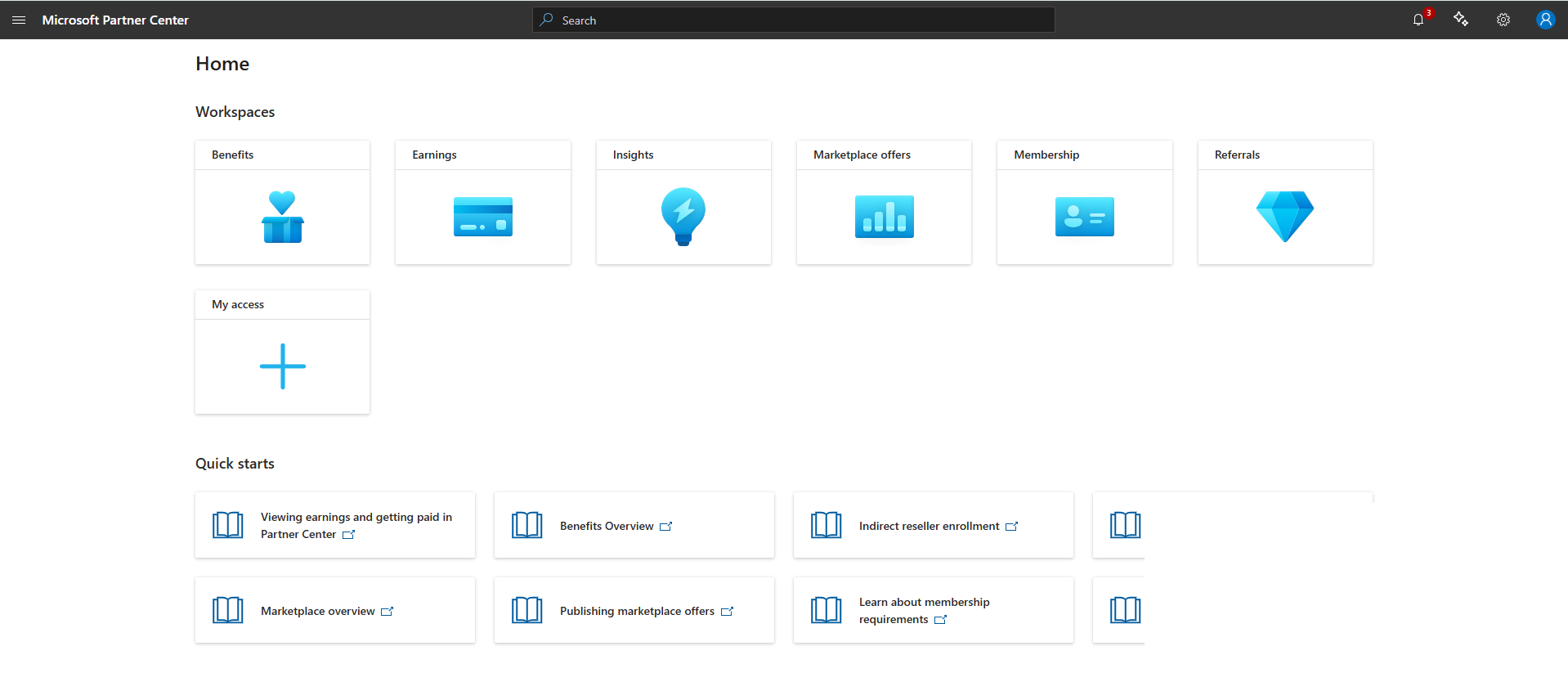
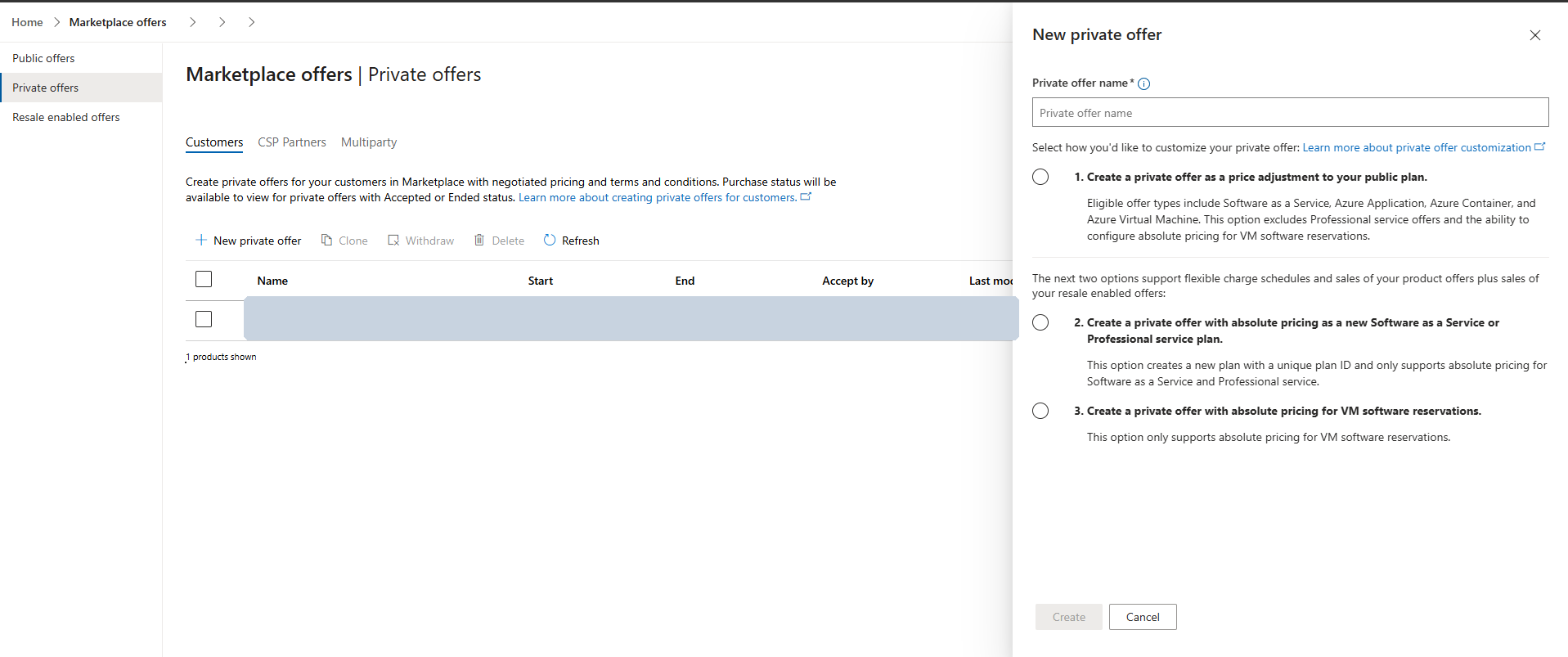
Step 2 Choose the offer type
In the New private offer drawer, select one of these options:
- Create a private offer with absolute pricing as a new Software as a Service or Professional service plan — recommended for negotiated absolute prices
- Create a private offer as a price adjustment to your public plan — percentage discount or absolute price on the public plan
Step 3 Name the offer
Enter a clear, consistent name. This name is visible to the customer in the Azure portal.
Naming pattern
Legale.io – CustomerName – YYYY-MM
Example: Legale.io – Contoso – 2026-07
Then click Create to open Offer setup.
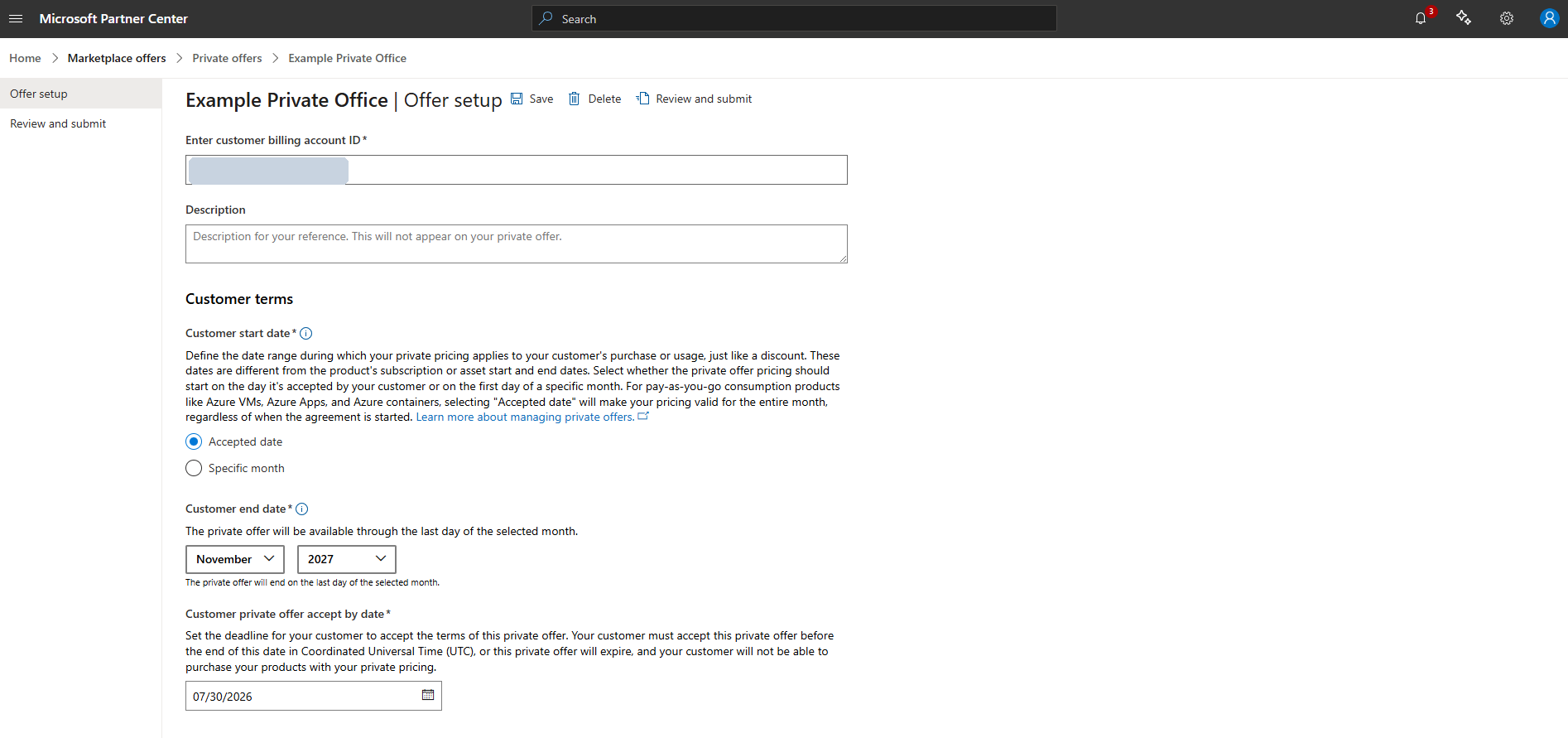
Step 4 Offer setup
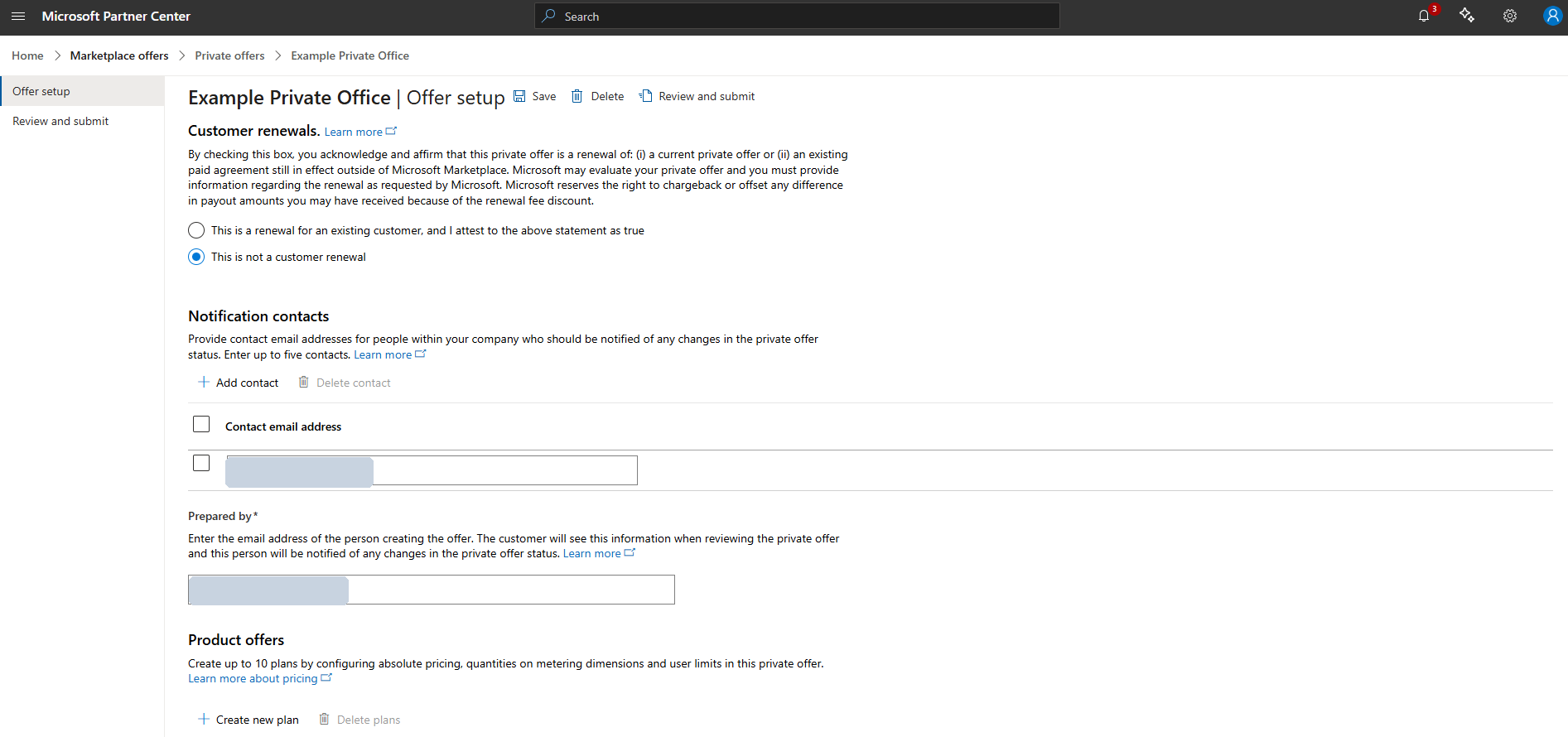
Complete the customer, terms, contacts, and product sections.
| Field | Example value |
|---|---|
| Customer billing account ID | Customer’s Billing account ID from Azure Properties |
| Description | Contoso – Enterprise private offer (internal only) |
| Start date | Accepted date |
| End date | For example, 12/31/2026 |
| Accept by | For example, 08/15/2026 — normally 14–30 days from creation |
| Terms PDF | Optional |
| Renewal | This is not a customer renewal |
| Notification contacts | sales@legale.io (and optionally the customer contact) |
| Prepared by | Your Partner Center email address |
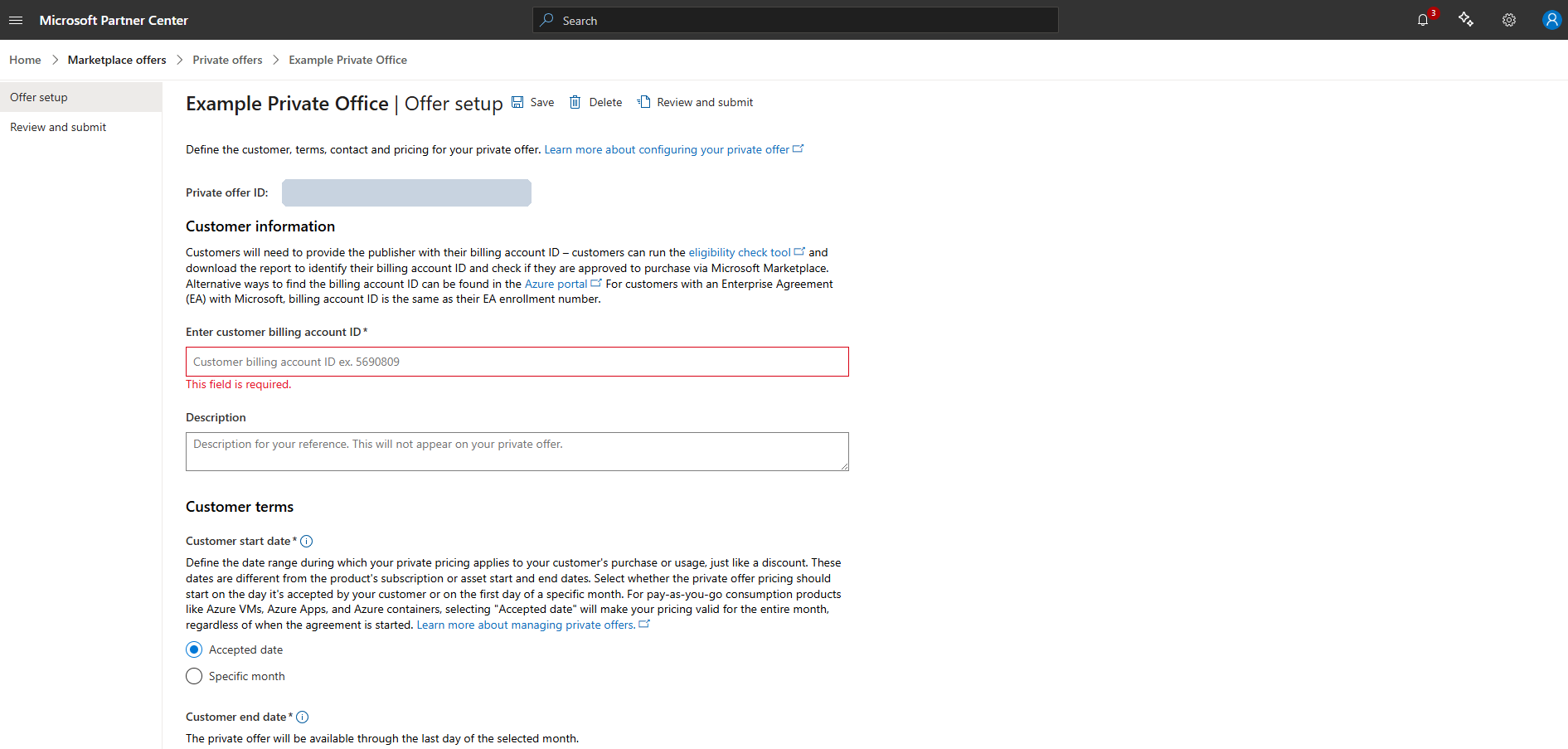
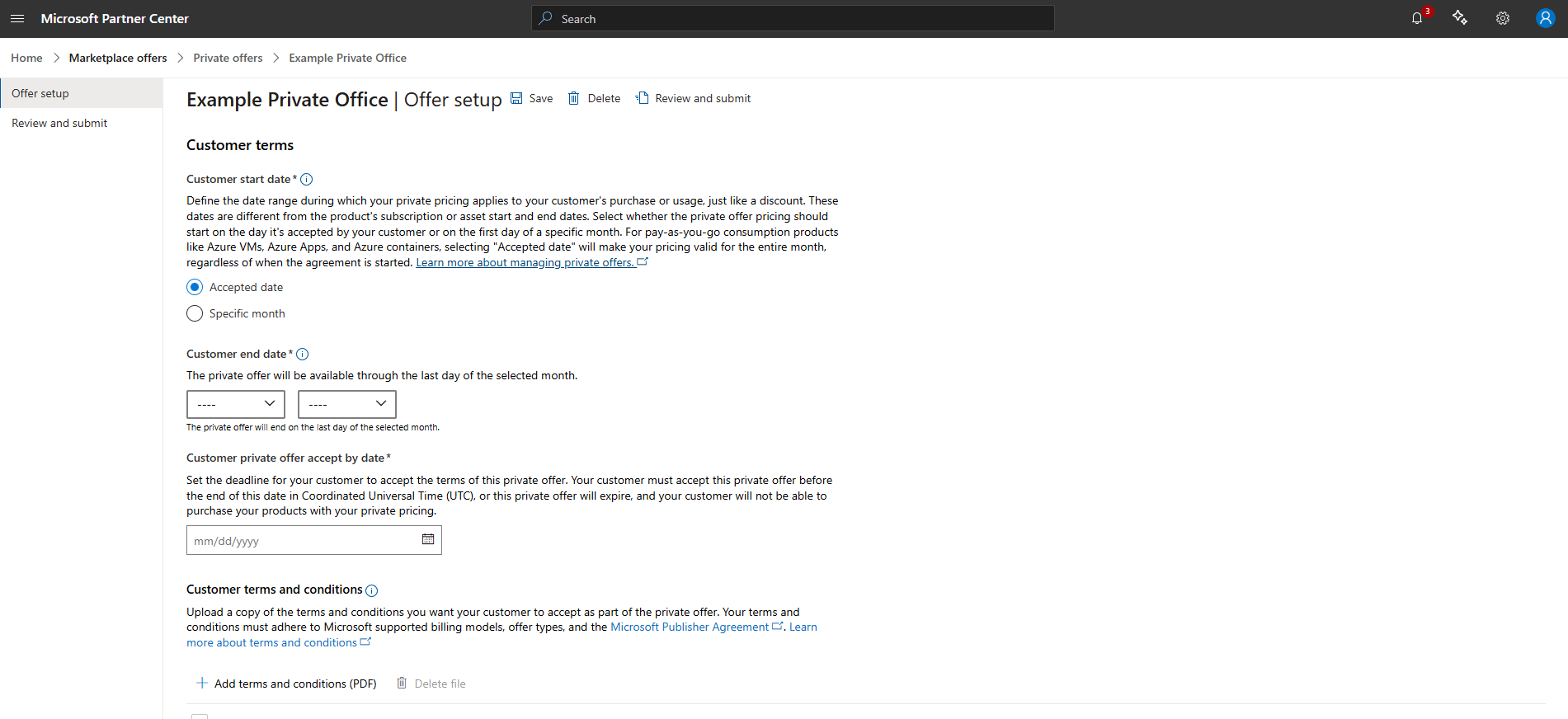
Step 5 Product and plan
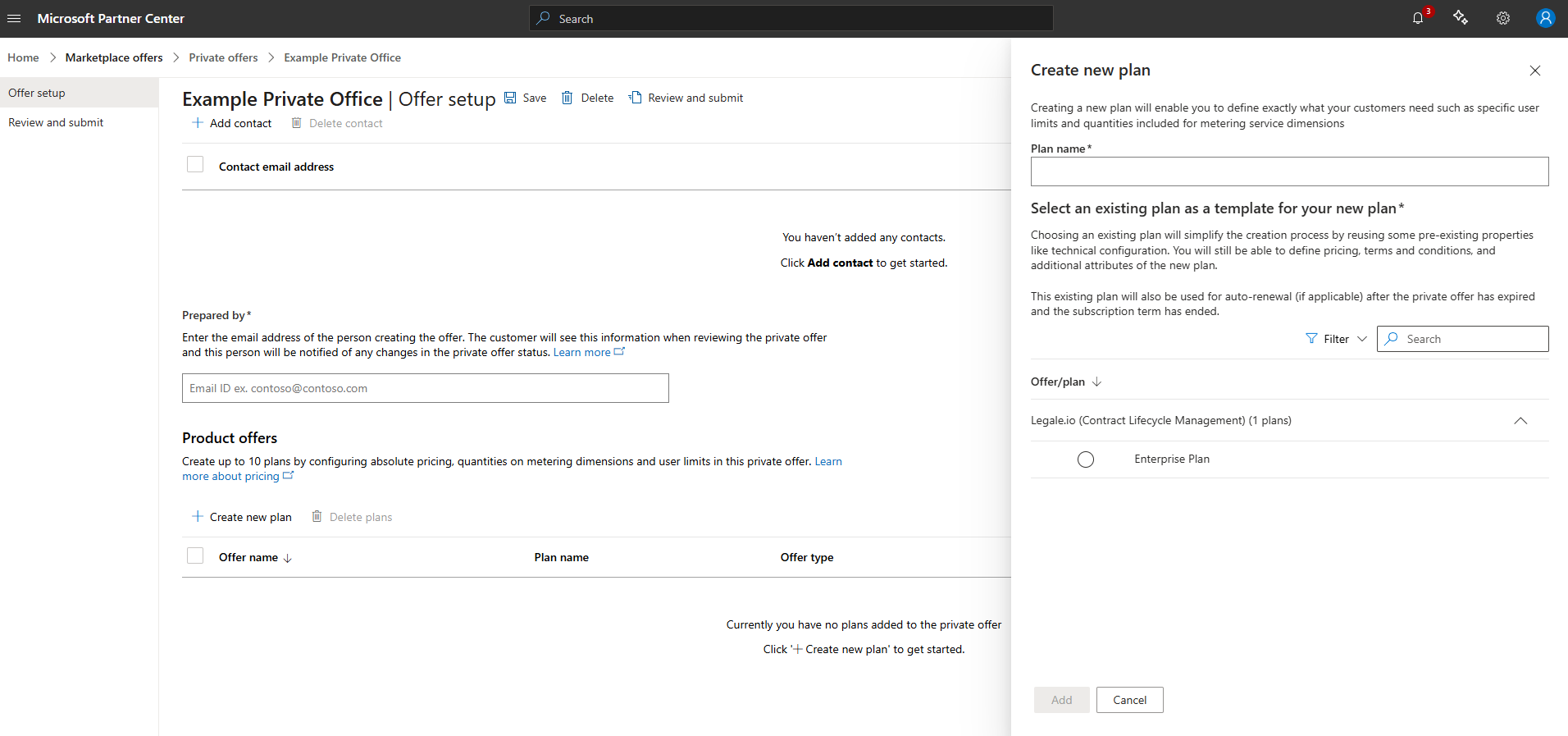
- Under Product offers, click + Create new plan (or add a product, depending on the offer type)
- Select Legale.io (Contract Lifecycle Management) → Enterprise Plan
- Enter a plan name, such as
Contoso Enterprise - Click Add or Save
Step 6 Pricing for the negotiated deal
Configure absolute pricing for the customer deal.
| Field | Example |
|---|---|
| Contract term | 1 year |
| Billing frequency | One-time |
| Amount (USD) | $5,000 — example negotiated price |
| Auto activation | Off |
| Renewals | Renew into public offer → matching 1-year term |
| Plan description | A short note describing the customer deal |
- Click Calculate total price, then confirm the amount
Step 7 Submit the private offer
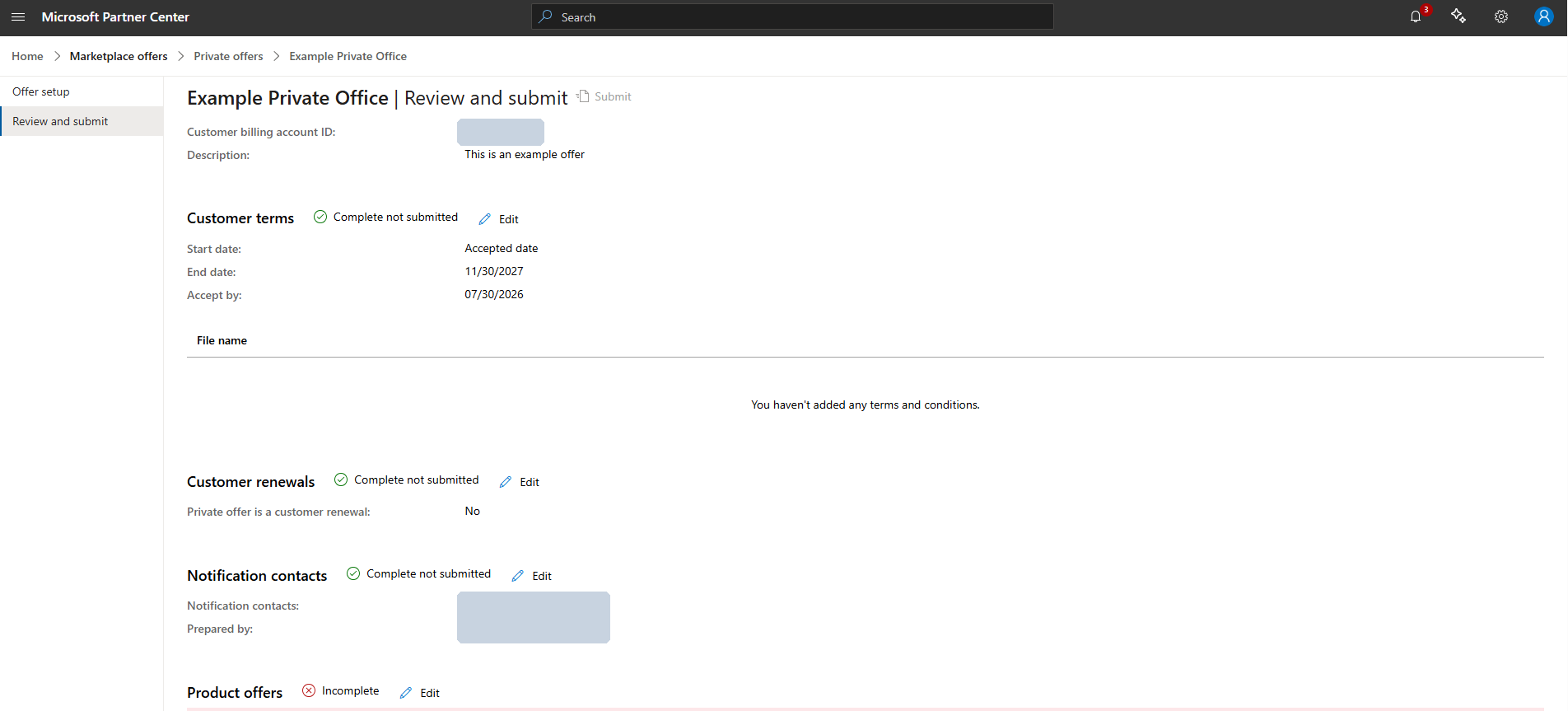
- Click Save
- Click Review and submit
- Confirm that all sections show Complete
- Click Submit
- When you see that the private offer is locked, copy the private offer link
- Send the link to the customer
Sample private offer values
Example only — complete these fields separately for each customer.
| Field | Example |
|---|---|
| Private offer name | Legale.io – Contoso – 2026-07 |
| Customer | Contoso Billing account ID |
| Product | Legale.io (Contract Lifecycle Management) |
| Plan | Enterprise Plan |
| Custom price | $5,000 USD / 1-year one-time |
| Accept by | 2026-08-15 |
| End date | 2026-12-31 |
| Notifications | sales@legale.io |
| Prepared by | Your Partner Center email address |
Customer accepts and purchases
Send the following instructions to the customer.
Subject: Your Legale.io Azure Marketplace Private Offer

Hi,

Your Legale.io Enterprise private offer is ready.

1. Sign in to https://portal.azure.com using your company billing account.

2. Open the private offer link that we sent you.

3. Accept the offer.

4. Click Subscribe.
   - Use a subscription that is not a CSP subscription.
   - Choose a resource group and enter a resource name, for example, legale-contoso.

5. When the subscription process is complete, click Configure account.

6. Sign in and complete the activation process on the Legale.io page.

For assistance, contact: support@legale.io
After purchase — activation checklist
Customer checklist
Money path
- 1Customer pays in Azure
- 2Microsoft Marketplace deducts its fee
- 3Payment is processed through Partner Center
- 4Funds are transferred to the publisher payout account
Pricing rules
- Negotiate first. The agreed deal price is configured on the private offer.
- One offer per deal. Create one private offer for each customer deal.
- Match the term. Private-offer term must match the public plan: 1-year / one-time.
- Short accept-by date. Ensures outdated quotations expire.
- Microsoft bills the customer. Do not invoice Marketplace purchases directly.
- Website tiers stay separate. Individual, Professional, and Business remain outside Microsoft Marketplace.
Common issues
| Issue | Fix |
|---|---|
| No plans appear in the private-offer picker | Confirm that the Enterprise plan is Public and Live |
| CSP subscription error | The customer must use a non-CSP subscription |
| Incorrect ID entered | Use the Billing account ID — not a tenant-only ID or Billing profile ID |
| Customer does not accept the offer | The offer expires on the Accept-by date. Create a new offer if necessary |
| Need to change a submitted offer | Withdraw only if not yet accepted. After acceptance, request cancellation via Partner Center support |
End-to-end cheat sheet
- Collect the customer’s Billing account ID and negotiated price
- Go to Partner Center → Private offers → + New private offer
- Add the customer, Enterprise Plan, and custom price
- Submit the offer and send the private-offer link to the customer
- Customer accepts, subscribes with a non-CSP subscription, and selects Configure account
- Confirm that the subscription is active in the admin portal
- Customer begins using Legale.io
- Microsoft bills the customer and pays the publisher
Do and don’t
Do
- Create a new private offer for each customer
- Use naming format: Legale.io – <Customer> – YYYY-MM
- Confirm activation in the admin portal
- Cancel test subscriptions after testing
Don’t
- Do not publish website self-service tiers on Microsoft Marketplace
- Do not send a private offer without the customer’s Billing account ID
- Do not use a CSP subscription to purchase the offer
Important links
| Purpose | URL or navigation |
|---|---|
| Partner Center | partner.microsoft.com |
| Private Offers | Marketplace offers → Private offers → Customers |
| Manage private offers (Microsoft) | learn.microsoft.com |
| Azure Portal (customer) | portal.azure.com |
| Landing page | legale-mp-portal.azurewebsites.net |
| Administration portal | legale-mp-admin.azurewebsites.net |
| Product website | legale.io |
| Support | support@legale.io |